Self-Service Cancellations
Activities Partner Central (LXPC) now offers a self-service cancellation feature, allowing you to directly refund travelers who are unable to participate in your product or activity.
- Make direct contact with the traveler and
- Provide an alternative solution, if possible, to prevent cancelling
- Advise the traveler of the cancellation in advance to avoid a negative experience
- Take any necessary actions in your system to change the status of the order and prevent payment expectations
- If you only need to partially refund the traveler, this cannot be processed in LXPC and must be submitted to Partner Support via the Contact Us form.
Once you've contacted the traveler and they cannot accept an alternative solution, proceed to LXPC to process the cancellation.
Step-by-Step Instructions
- Login to LXPC
- Select the correct branch if applicable or go directly to next step after login
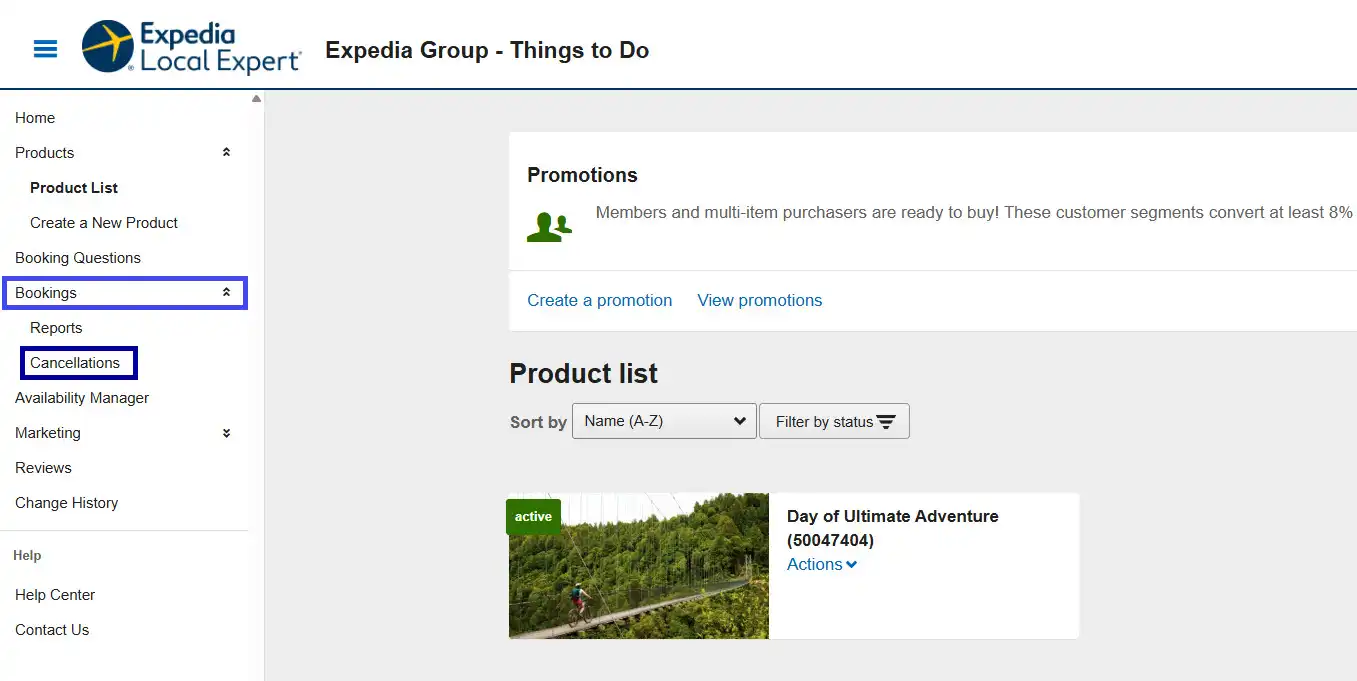
- On the left navigation panel select Bookings > Cancellations
- Search by the necessary criteria. For guidance on what criteria is best for your needs, please refer to the "Search Criteria" section below.
- Once you've entered your Search Criteria, click on "Search" to receive your results
If you receive a message that says "Sorry, there were no results found for this search. Please try adjusting the search parameters.", ensure you recheck your search criteria before escalating.
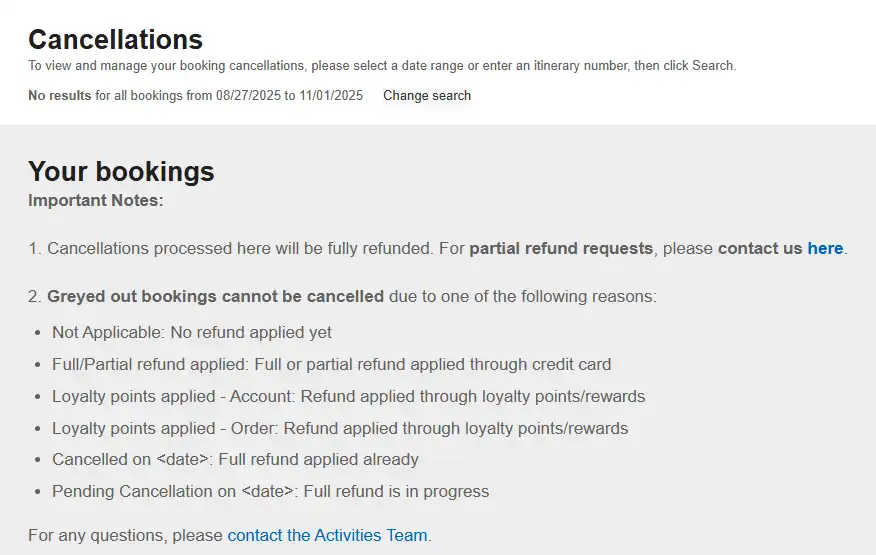
If all is correct, check the booking status as it may already be cancelled. All refund statuses are listed below:
If none of the above applies, please reach out to the Partner Support Team for help
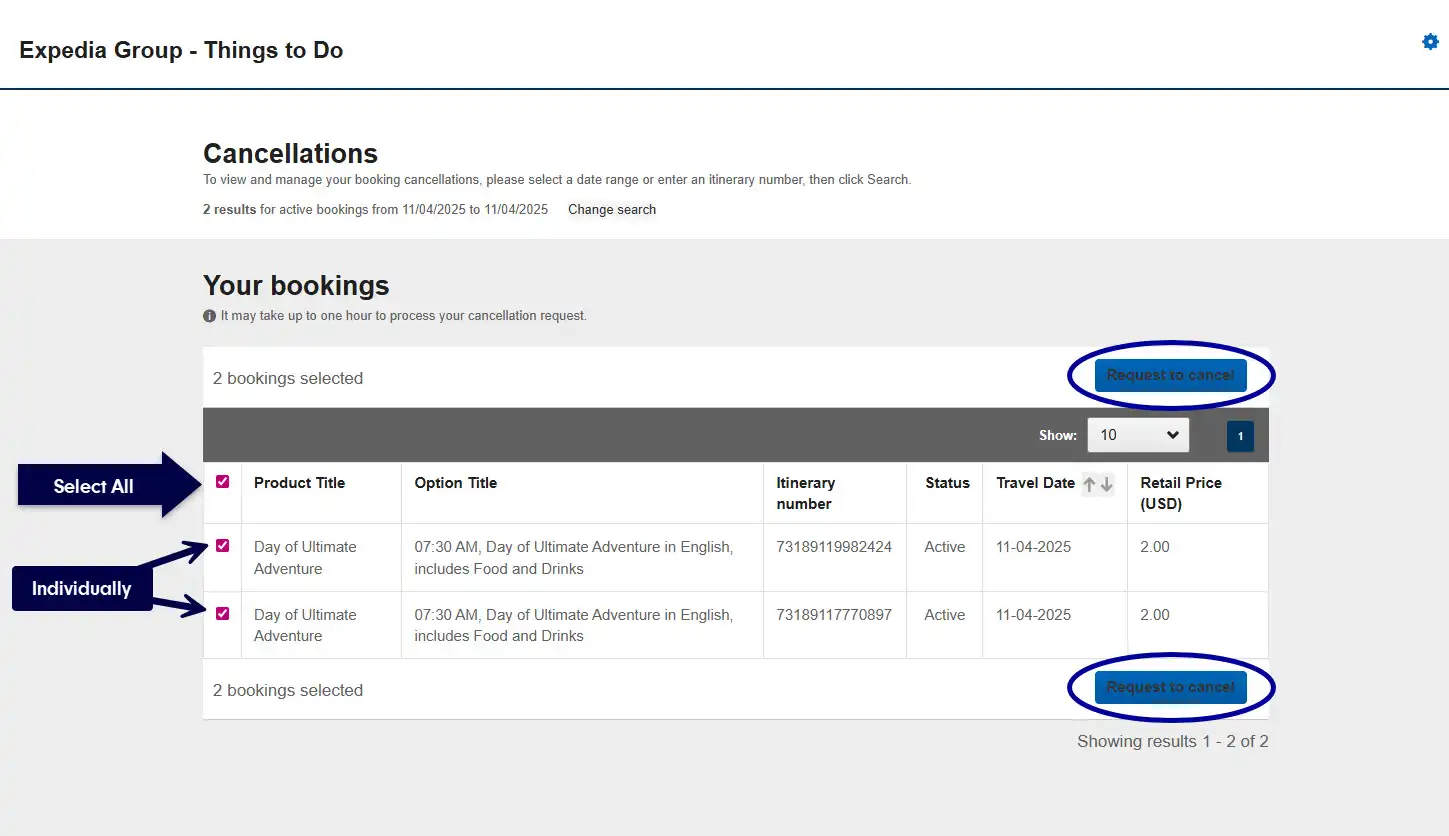
- Results will display as follows:
- Product Title: Name of your product
- Option Title: Name of the offer the traveler selected
- Itinerary Number: EG 14-number itinerary number
- Sale ID: Unique identifier
- Refund Status: This will show the status of the refund. Status reasons listed under the "Important Notes" section of Your bookings (image above).
- Travel Date: Travel Date associated with the booking
- Retail Price (USD): Amount the traveler booked for
- Once you've identified the correct Itinerary(s) to cancel, select the check box of the impacted booking(s) and click "Request to cancel".
- To select multiple itineraries check the boxes of the impacted bookings.
- If ALL need to be canceled in your search results click on the box in the header to select all
- A "Request Cancellation" window will pop-up in which you must select a reason for the cancellation:
- Flex Policy – Force Majeure event preventing redemption
- Weather conditions – Non-Operational due to weather
- Availability Issue – Overbooked, Max capacity reached, Technical Issues preventing service
- Min capacity not met – Not enough travelers for the activity to operate
- Under Policies and Redemption for this product ensure you check "Product may be cancelled or rescheduled if the minimum group size is not met" to set an expectation for the traveler before they book.
- Booking confirmation not received/delayed – Missing booking and cannot accommodate on short notice
- Incomplete Booking Details – Missing necessary traveler details to provide service, and made multiple attempts with the traveler to retrieve the missing information
- Driver No Show – Driver did not arrive to the expected pick-up point on time
- Business closure – Product no longer operating indefinitely
- Customer Requested – If the traveler contacts you directly and you approve (regardless of your cancellation policy)
- Other – Fill in the text with any other reason that does not fit the above scenarios
- You must check the box stating "I understand that cancelling this booking for [Retail Amount] cannot be undone and agree to refund amounts associated with the booking."
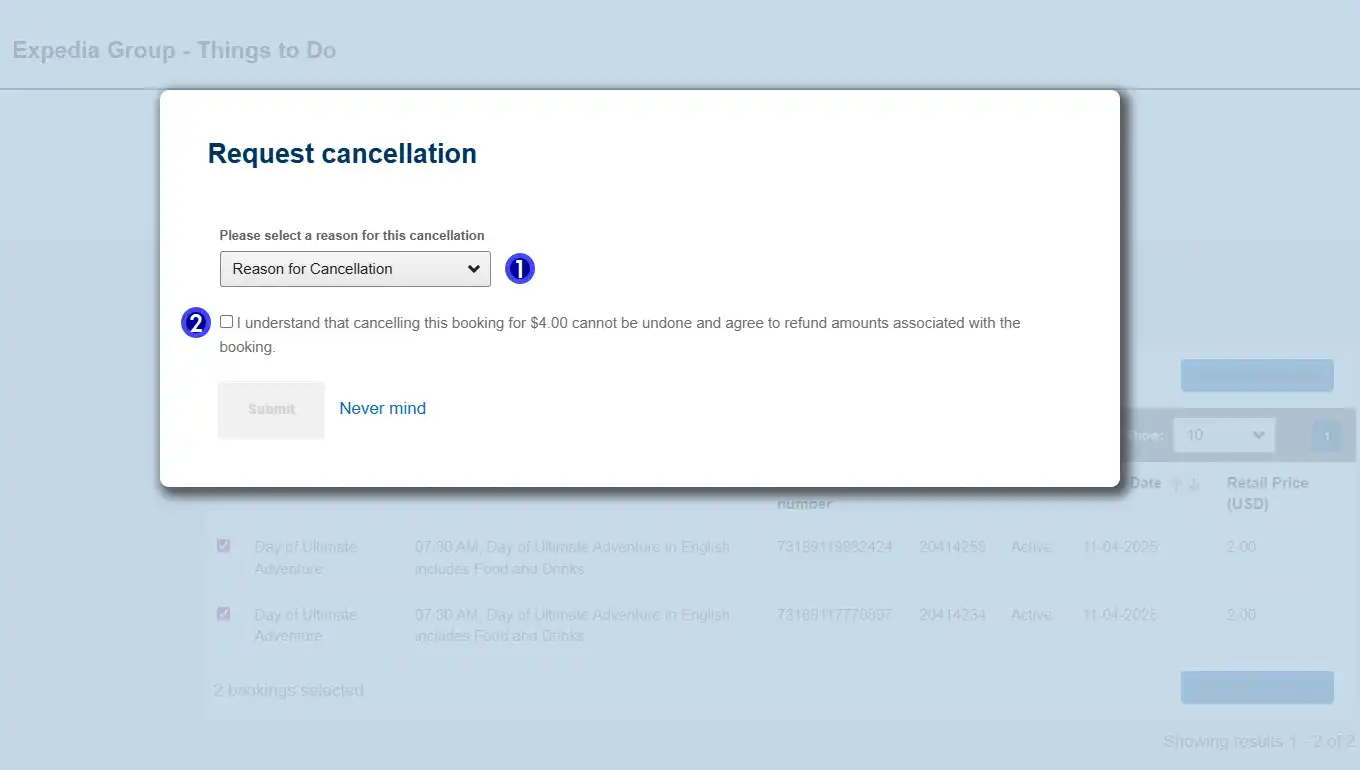
- Click Submit
Refund Results
- If the cancellation(s) were successful you'll receive the following success message:
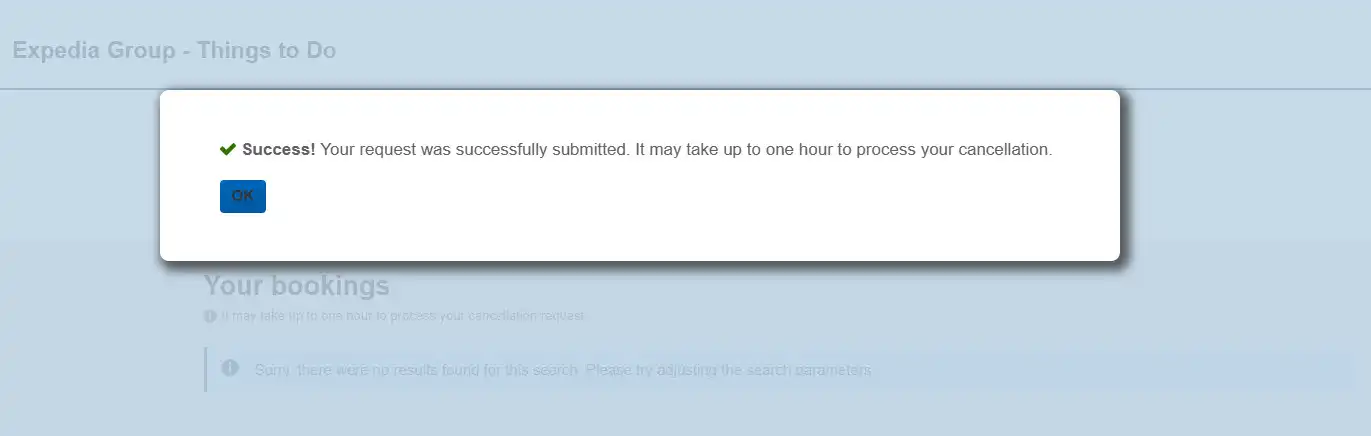
Successful cancellation statuses of the booking(s) will appear as either "Pending cancellation" or "Cancelled"
Congrats! You've successfully refunded a traveler and provided an expedited resolution.
Search Criteria Support
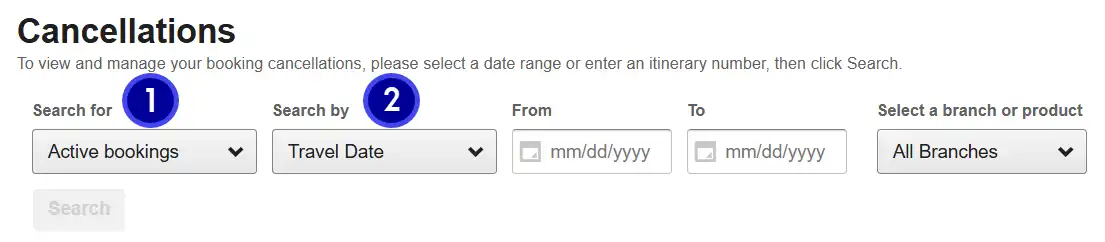
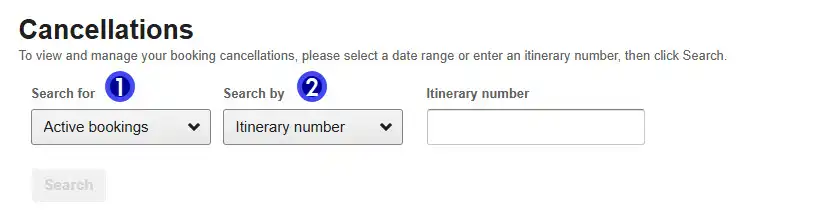
- Search for (1)
- Active = Non-cancelled bookings only
- All bookings = All Cancelled + Active bookings
- Cancelled bookings = Cancelled bookings only
- Search for (2)
- Travel Date - Use if your activity will be non-operational for the entire day, multiple days, or you are cancelling more than one Itinerary
- From Date – First date of being non-operational
- End Date – Last date being non-operational (can be same date)
- Select a branch or product – Select a specific branch or product to minimize your search results. Otherwise if due to major closures leave as "All branches".
- Itinerary - Use if you only need to cancel one Itinerary at a time
- Itinerary Number – Enter the EG Itinerary number which is 14 numbers long and usually starts with a "7"
- Example: 73166506831885
- Itinerary Number – Enter the EG Itinerary number which is 14 numbers long and usually starts with a "7"
- Travel Date - Use if your activity will be non-operational for the entire day, multiple days, or you are cancelling more than one Itinerary