UI guidelines
A well-designed and simple user interface (UI) plays a crucial role in enhancing user experience. It can mean the difference between driving user engagement through a smooth experience and frustrating users by creating confusion. The following information is provided to help you create an appealing, intuitive, and user-friendly interface for the product management capability. We’ve also included a checklist to assist you in the design process.
What is Expedia Partner Central?
Expedia Partner Central (EPC) is a “one-stop shop” for properties. It is a tool that enables partners to manage listings on Expedia Group’s web sites. Our partners are encouraged to self-serve, when possible. All of the UX patterns and interface examples that are presented below come from EPC as the standard for product management. After a partner adopts the product management capability, a property can manage rooms, rate plans, cancellation policies, and fees using their software provider's UI, replacing the need for EPC.
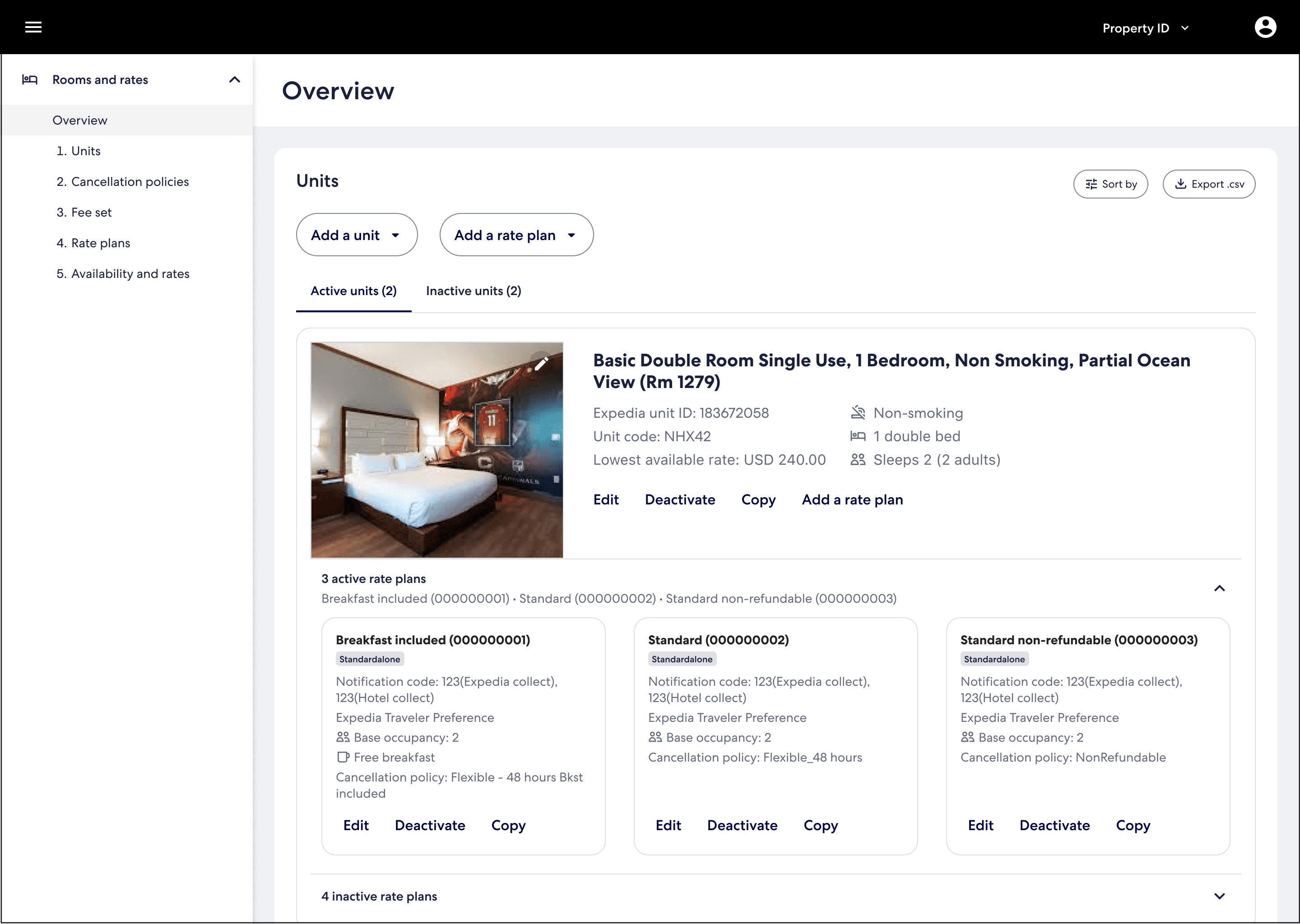
For example, this is EPC’s Units page, which is the main page for managing units.
Best practices when creating a UI to manage products
When designing the UI for creating products:
- Follow the workflow provided in the Intro to product management.
- Enforce the sequence in the UI (for example, disable later steps until prerequisites are complete).
- Provide separate management areas for each component: properties, units and spaces, cancellation policies, fee sets, rate plans, and availability and rates.
- For the rate plan creation UI, enable users to select multiple units at creation. But, behind the scenes, create one rate plan per selected unit; An Expedia rate plan ID is unit-specific and cannot be shared across units.
When designing the UI for updating products:
- Use the same UI that is used to create products to keep validation and workflows consistent.
- Be aware of the following:
- Rate plans can be deactivated or deleted.
- A unit can have multiple rate plans, and it cannot be deactivated directly. To inactivate a unit, deactivate all rate plans linked to it. In the UI, offer a single “Deactivate unit” action that calls the API to deactivate all associated rate plans.
- Cancellation policies and fee sets are reusable and can be attached to multiple rate plans. Updating a cancellation policy or fee set applies to all attached rate plans. Cancellation policies and fee sets cannot be deactivated or deleted, but they can be replaced.
Displaying property details
Product management cannot be used to create or update properties; property details are read only. However, property details drive how units, rate plans, cancellation policies, and fee sets can be created. Surface them in your UI and cache as needed to prevent configuration errors. You can query additional fields, but the following are essential:
Name - Property name
Expedia property ID - Unique Expedia property identifier
Rate acquisition type - Sell (rates include compensation) or Net (rates exclude compensation)
Business model - Expedia Collect (Expedia charges the traveler and remits to the partner), Hotel Collect (property charges the traveler and pays Expedia commission), Expedia Traveler Preference (ETP, traveler chooses between the two)
Be aware that the rate acquisition type plus business model restrict what can be selected on rate plans during creation.
Pricing model - Determines the allowable rate‑plan pricing models.
- Occupancy‑based pricing (including by day of arrival or by length of stay) is only available if the property is set to occupancy‑based; the same applies to per‑day pricing.
- When length-of-stay pricing is used, day of arrival is enabled (Expedia requirement). The day of arrival pricing attribute is set at the rate plan level. Day of arrival signifies that the price of the arrival day is applied to the whole stay.
- When per-day length-of-stay pricing is enabled and restrictions are set as stay-through (property level setting), restrictions behave like arrival date-based restrictions.
Local tax jurisdiction - If the property is in New York City, unit‑level room‑count and tax inputs must be collected during unit creation (using the
setUnitLegalNumberOfNewYorkRoomsRegulatoryAttributesmutation).Tax inclusivity - Whether rates include taxes. For Sell properties, the rate plan’s tax inclusive setting must match the property setting.
Displaying units and unit spaces
After the property is created, at least one unit must be added to represent the actual sellable room or space. Units cannot be sold without first being created, and they must include enough structural and sleeping‑space information to support occupancy rules, room‑based taxes (where necessary), and traveler‑facing naming.
To successfully set up a unit, a set of required and optional fields must be configured, and the UI should use progressive disclosure to reduce cognitive load: only fields relevant to each step should be shown, and additional sections are unlock as the user completes the previous step.
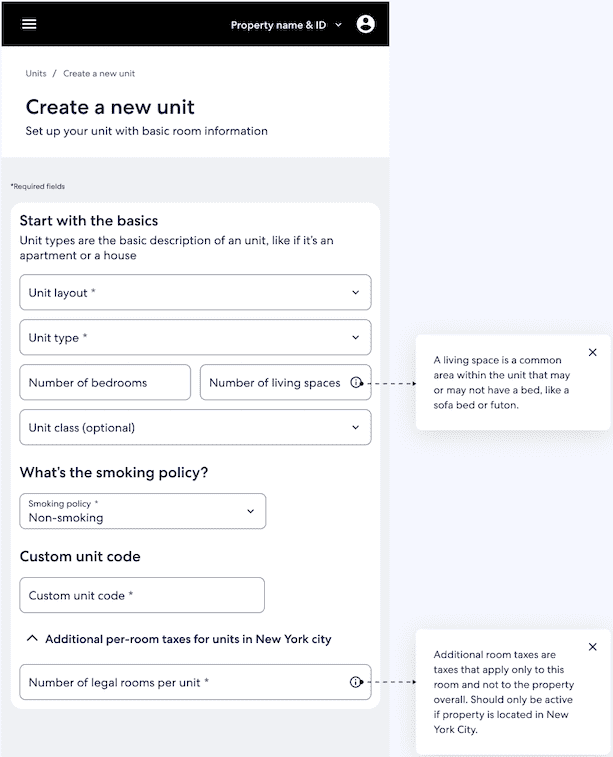
Part 1 - Start with basics
Unit layout (required) - Provide a drop-down menu that indicates whether the unit is a single‑space room (such as a hotel room or studio) or a multi‑space room (such as a suite, condo, or villa). This affects which fields appear next, including bedrooms, living spaces, and bed‑type configuration.
Unit type (required) - Provide a drop-down menu that enable the user to choose a high‑level description of the unit, such as room, apartment, house, or cabin. This value is later used as an input when composing the unit name.
Number of bedrooms - Provide a drop-down menu to select the total bedroom count for the unit. This controls how many bedroom blocks are available in the “Set up sleeping spaces” step and influences occupancy recommendations. Be aware that creating multiple bedrooms corresponds with a multi-space room.
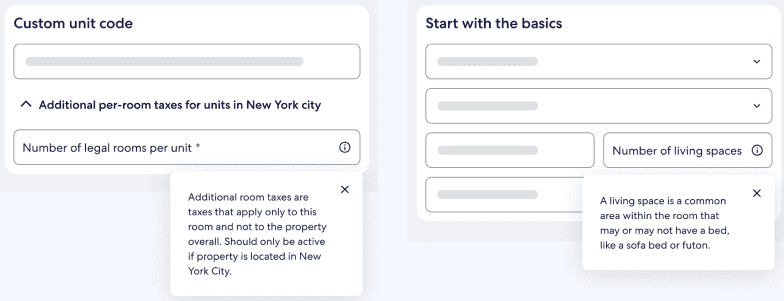
Number of living spaces (required for multi-spaces)- Provide a drop-down menu. For multi‑space units, this defines how many living space blocks are available, which is a common area that may or may not contain a bed (such as a sofa bed or futon).
Unit class - Provide a drop-down menu that enables the user to select the classification, such as standard, deluxe, or suite. When present, this is added into the generated unit name (for example, “Deluxe Double room”).
Smoking policy (required) - Provide a drop-down menu. This can optionally be included in the final unit name.
Custom unit code (required) - Provide an open text field so that the user can specify a unique code for internal and connectivity purposes.
Additional per‑unit taxes (conditional) - Provide an open numeric text field. If the property is located in New York City, the legal number of rooms per unit must be specified for tax calculation purposes. Make sure the field is active and required if the
localTaxJurisdictionquery returns New York City. Otherwise, keep the field hidden or disabled.
Part 2 - Set up sleeping spaces
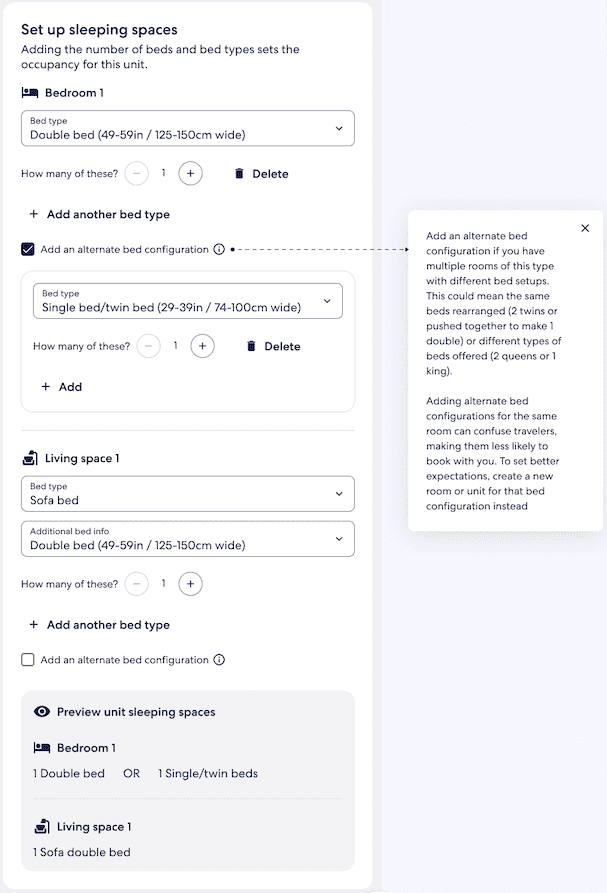
- Bedrooms (required) - Provide a drop-down menu. If the unit has multiple spaces, the user can add one or more bedroom blocks. Each block includes:
- Bed type (required) - Provide a drop-down menu.
- Quantity - Provide a numeric stepper.
- Optional - Provide the ability to add an alternate bed configuration.
Living spaces (multi‑space only) - Provide a drop-down menu. If living spaces are defined, the interface displays living space blocks with the same structure as bedrooms (bed types, quantity, and optional alternate bed configuration) for sleeping areas, such as sofa beds or day beds.
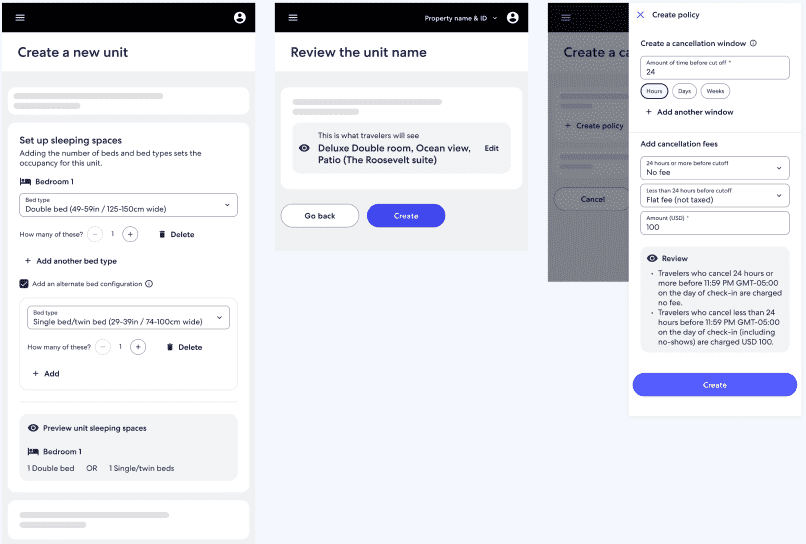
Preview - A “Preview sleeping spaces” panel shows the combined bed configuration from all sleeping areas so users can quickly verify their selections before continuing.
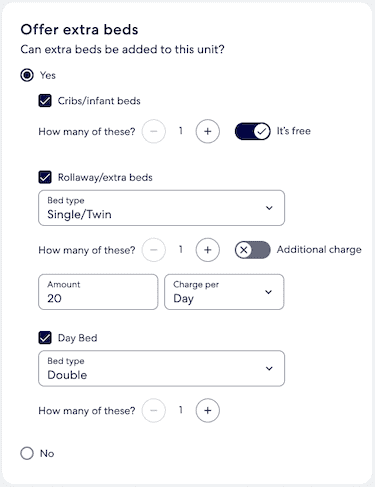
Part 3 - Offer extra beds
- Crib/infant beds - Provide a checkbox. If selected, additional fields should be displayed:
- Quantity: Provide a numeric stepper.
- Cost: Provide a numeric field, if applicable.
- Rollaway/extra beds - Provide a checkbox. If selected, additional fields should be displayed:
- Extra bed type: Provide a drop-down menu.
- Quantity: Provide a numeric stepper.
- Cost: Provide a numeric field, if applicable.
- Day beds - Provide a checkbox. If selected, additional fields should be displayed:
- Day bed type: Provide a drop-down menu.
- Quantity: Provide a numeric stepper.
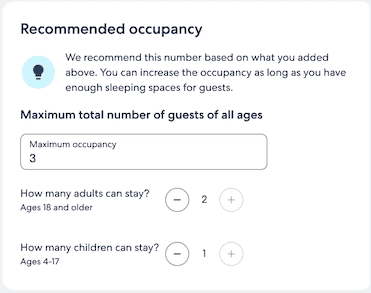
Part 4 - Recommended occupancy
Maximum total number of guests of all ages (required) - Provide an pen text field. Initialize maximum occupancy to the system‑recommended value based on the configured beds, but allow users to adjust it upwards only when it does not exceed realistic sleeping capacity.
Adult number (required) - Provide a numeric stepper that enables the user to select the number of adults allowed (for example, defined as ages 18+).
Child number (required) - Provide a numeric stepper that enables the user to select the number of children allowed (with age bands defined in the next step).
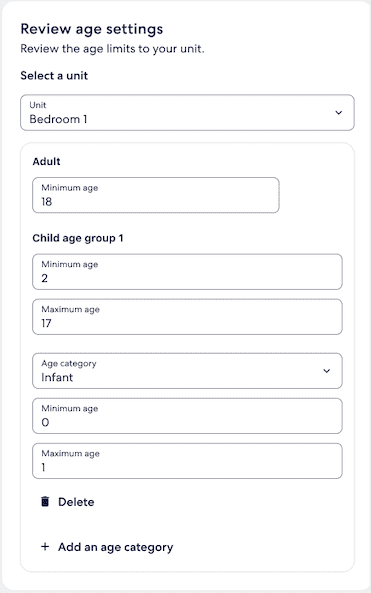
Part 5 - Review age settings
Use this step to set unit-level age categories that override the property defaults. Show a table of age groups for the unit (such as adult, child group 1, infant), with configurable minimum and maximum ages. Enable users to add additional age categories if their policies require more granular bands.
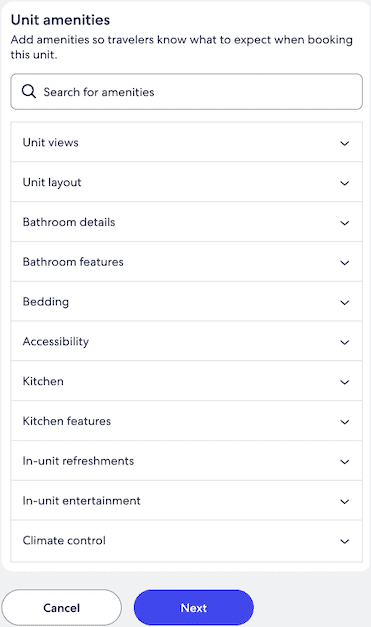
Part 6 - Unit amenities
After structural details and occupancy are set, the UI should provide a unit amenities search and selection panel. The searchable amenity list should provide grouped categories:
- Unit views
- Unit layout
- Bathroom details and bathroom features
- Bedding
- Accessibility
- Kitchen and kitchen features
- In‑unit refreshments
- In‑unit entertainment
- Climate control
Selected amenities can later be used as input when composing the unit name.
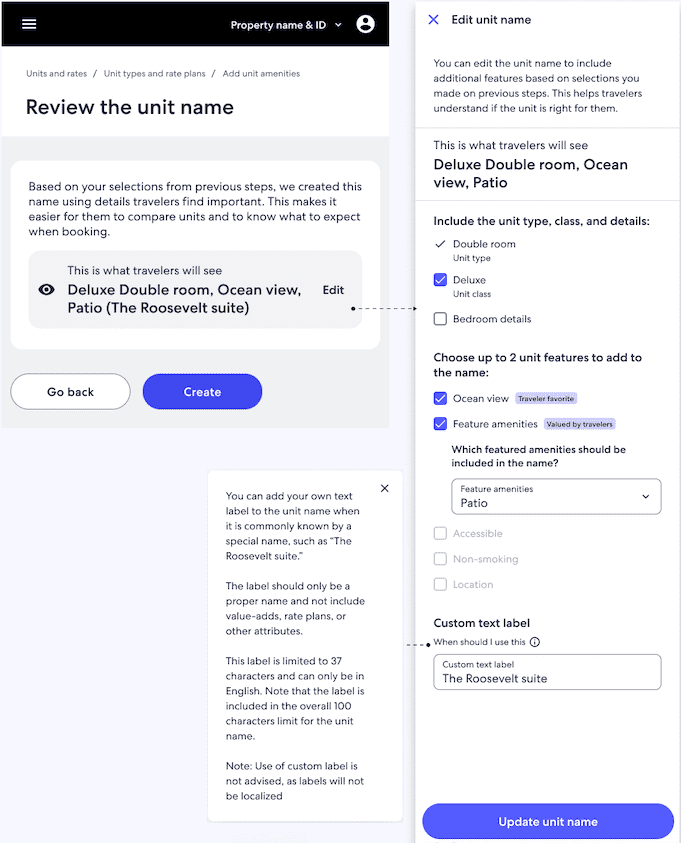
Part 7 - Review the unit name
To reduce steps, automatically generate a traveler‑facing unit name based on the inputs selected in previous steps and give users the ability to refine it.
Generated unit name (read‑only preview) - The name should be based on unit type, unit class, smoking policy, custom label, and selected key amenities. Unit class, unit type, and custom label are always used, if provided.
Editable unit name - Provide an open side panel. Users should be able to make edits as follows:
- Choose either bed type or bedroom details; only one can be stored.
- Choose up to two of these attributes: accessibility, smoking policy, featured amenity, view, location. After two are selected, the others should be disabled.
- Modify the unit name, which can include up to 100 characters. If exceeded, omit optional attributes to meet the limit.
- Add a custom label, though this is not advised because custom labels are not localized.
The user can then accept the suggested name or apply allowed edits, then select "Create to finish unit setup".
Rate plans
After at least one unit is created, a rate plan must be created and assigned for the unit(s). Units cannot be sold without a rate plan attached to them. After selecting a rate plan type, policies, fees, value adds, and restrictions can be defined for and applied to each unit.
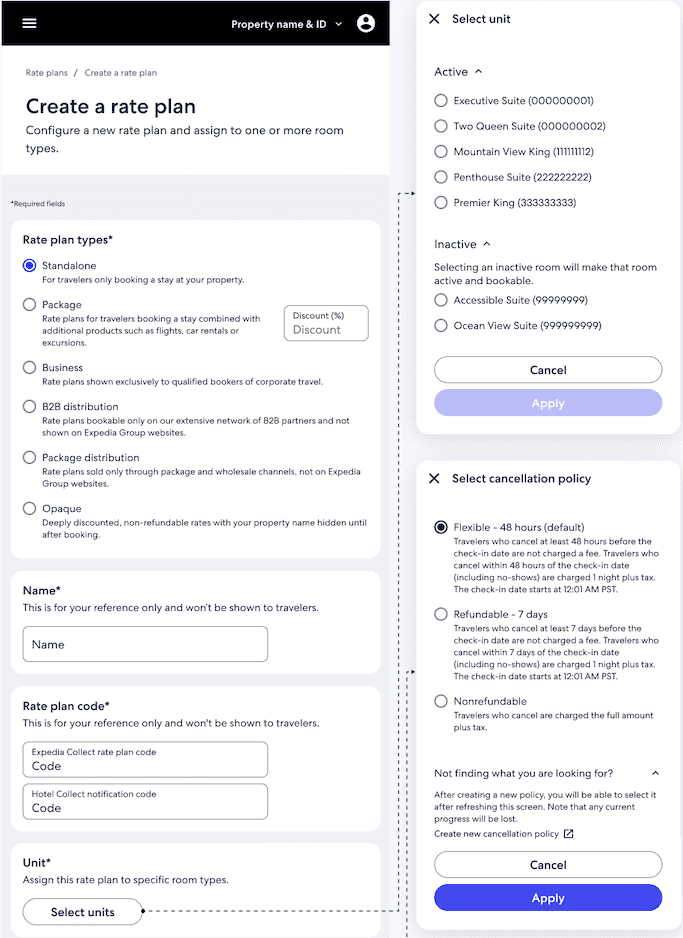
Part 1 - Create a rate plan
To successfully set up a rate plan, the property has to complete a selection of fields.
Rate plan types (required) - Provide a checkbox to offer these rate plan types: Standalone, Package, Business, Opaque, B2B Distribution, and Package Distribution. Note that Business, Opaque, B2B Distribution, and Package Distribution rate plans are only available for creation if the property has opted into these specific programs with Expedia.
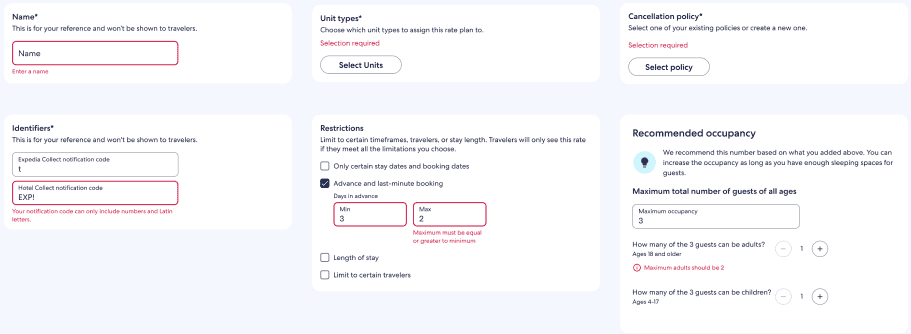
Name (required) - Provide an open text field. This is an internal field and will not be displayed to travelers. The maximum character length is 40.
Status - Omit status during creation; all new rate plans default to the active status. Expose status only in the edit/update flow, where users can change it (from active to inactive).
Rate plan code (required) - Provide an open text field. This is an internal field and will not be displayed to travelers. During rate‑plan creation, enforce the property’s rate acquisition type and business model; only allow compatible options and automatically disable any fields that conflict with those property‑level settings to prevent errors (see "Displaying property details" above for more details).
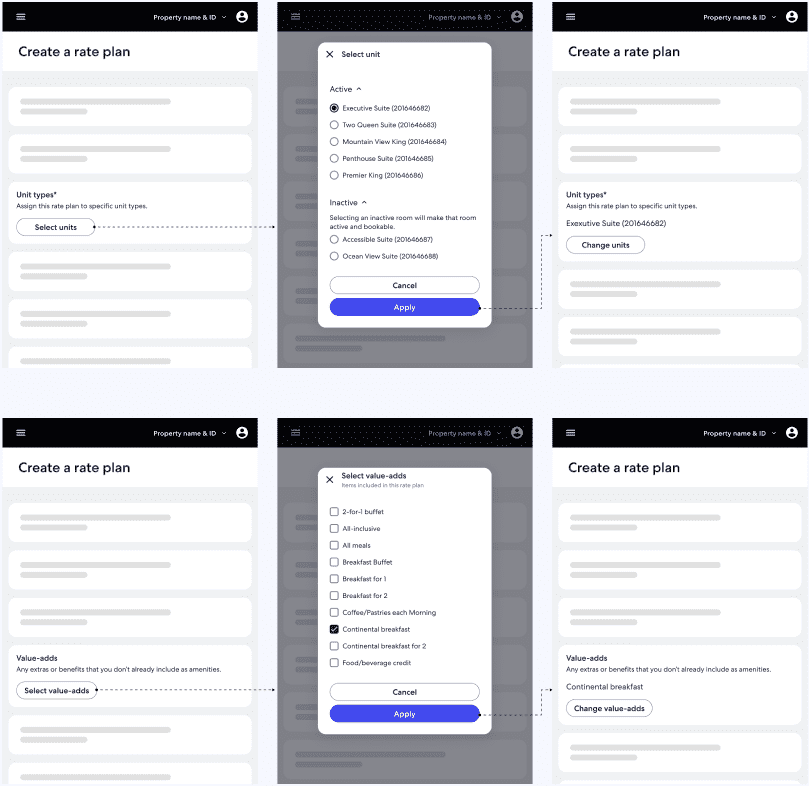
Unit (required) - Provide a pop-up window to display a list of active and inactive units that the rate plan can be assigned to.
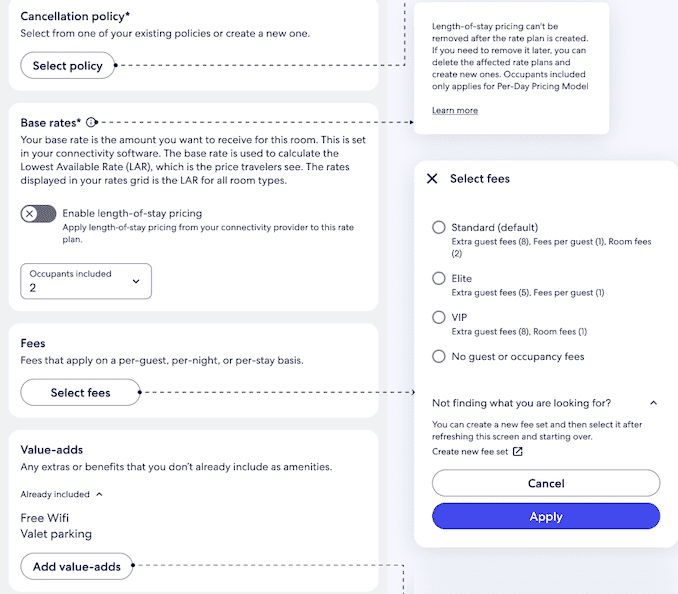
Cancellation policy (required) - Provide a pop-up window that displays a list of active cancellation policies. Provide the option to create a new cancellation policy. For the Business rate plan, cancellation policies must adhere to these specifications:
- Outside window cancellation fee (12 hours or more before cut-off) = No fee
- Inside window cancellation fee (less than 12 hours before cut-off) = 1st night + fee
If the user attempts to create a Business rate plan with any other cancellation policy terms, the cancellation policy will be overridden and set to the configuration above.
Base rate (conditional) - In the per‑day pricing model, display a toggle that, when enabled, reveals a dropdown to set the number of occupants included in the daily base rate (1–20). This value is required during creation only for per-day pricing model. For other pricing model, be sure to disable this field.
During rate‑plan creation, also show a separate toggle to enable or disable length‑of‑stay pricing, which should apply to both per‑day and occupancy‑based pricing models. This setting can only be set at the rate plan level (not property level). Make sure that rate plan's pricing model matches the property's pricing model on the Expedia side to avoid errors (for example, a rate plan created as occupancy-based pricing will fail if property pricing model is per-day-pricing).
Fees - Provide a pop-up window to display a list of active fee sets and allows the option to create a new fee set.
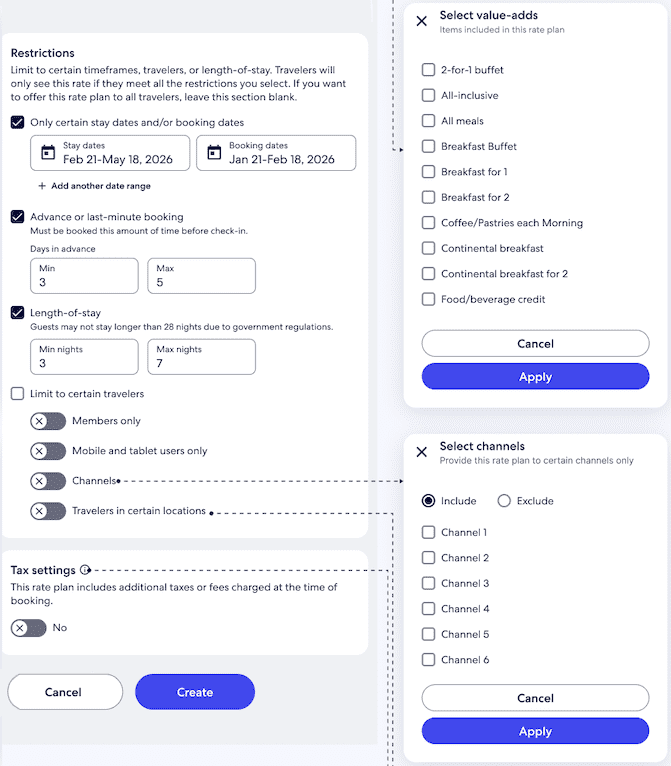
Value adds - Provide a pop-up window to display a list of value adds that the rate plan offers. There is no limit to the number of value adds a rate plan can have at any given time. Note that there is a separate list of value adds for Business rate plans. If Business is selected, these value adds should be shown as options.
Restrictions - Provide a checklist. Limit a rate plan’s visibility by timeframe, length of stay, or traveler eligibility. The rate plan can be limited by certain stay dates, booking dates, last‑minute days, minimum and maximum length of stay, and specific travelers. When a type is selected, display fields to configure its details. Note that for Business and B2B Distribution rate plans, the “Limit to certain travelers” options should be disabled.
Stay and booking dates, last‑minute cutoff, and length‑of‑stay can also be set using the Availability & Rates API. If configured in both places, Expedia applies the most restrictive setting. If these settings are managed using the Availability & Rates API, hide or disable them in rate plan screen to avoid conflicts.
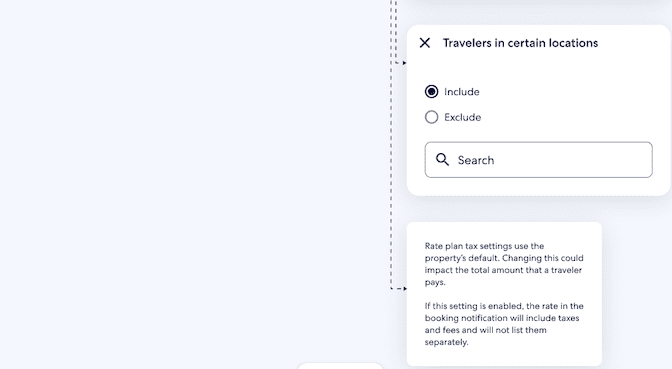
Tax settings - Provide a toggle to select whether or not to apply the property’s default tax policy to the rate plan. This may change the total amount that the traveler pays.
Part 2 - Link rate plans
Rate plan linkage enables a property to create a child (derived) rate plan that inherits from a parent (main) rate plan. This way, pricing and selected restrictions are managed in one place and applied to multiple plans with a defined adjustment and date range. You can link rate plans during creation or later by editing an existing rate plan. Availability and rates should only be pushed to the parent rate plan but both parent and child rate plans need to be mapped back to your system.
Note that length-of-stay rate plans cannot be linked. If this setting is enabled, do not show these rate plans in the drop-down list of options of rate plans to link. Additionally, if rate plan linkage has been disabled at the property level, rate plan linkage will not be allowed to be used.
Establish the rate plan relationship
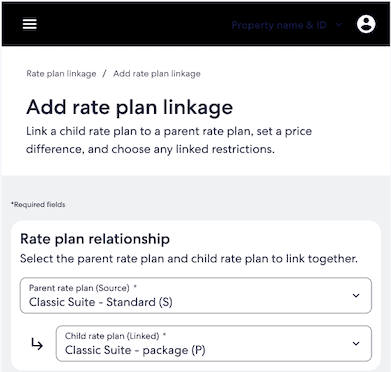
- Parent rate plan (required) - Provide a drop-down menu to select the parent rate plan that will act as the source of truth. Its prices and any linked restrictions will drive the child plan.
- Child rate plan (required) - Provide a drop-down menu to select the rate plan that will inherit from the parent plan. We recommend that you only show eligible rate plans (for example, exclude the same plan as both parent and child, and prevent combinations that would create linkage loops).
Provide options for rate adjustments
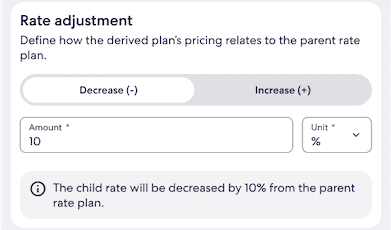
- Rate adjustment (required): Provide segmented control, numeric text field, and a drop-down menu. The user can select whether the child plan decreases or increases from the parent rate plan, and then they can enter the adjustment amount and specify whether it’s a percentage or a fixed currency amount. We recommend that you add a short inline explanation, such as “The child rate will be decreased by 10% from the parent rate plan,” to make the impact immediately clear.
Link restrictions
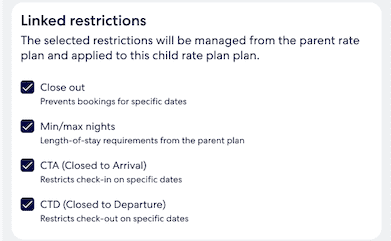
Provide these options:
- Close out - Provide a checkbox. When selected, the child plan uses the parent plan’s close‑out dates (days when stays are not allowed).
- Min/max nights - Provide a checkbox. When selected, the child rate plan inherits the parent rate plan’s minimum and maximum length‑of‑stay rules.
- CTA (Closed to Arrival) - Provide a checkbox. When selected, the child rate plan inherits the parent rate plan’s closed‑to‑arrival dates.
- CTD (Closed to Departure) - Provide a checkbox. When selected, the child rate plan inherits the parent rate plan’s closed‑to‑departure dates.
We recommend that you use helper text, such as “The selected restrictions will be managed from the parent rate plan and applied to this child rate plan” so that developers understand that changes happen upstream.
Provide a travel date range
- Travel date range - Provide start and end date pickers that define the stay dates when the linkage is active. Outside this range, the child rate plan behaves as an independent rate plan.
- No end date - Provide a checkbox. When selected, disables the end date field and treats the linkage as open‑ended from the start date forward.
- Exceptions - Provide start and end date pickers that allow the property to define specific stay dates where the linkage should not apply, even if they fall within the parent travel date range.
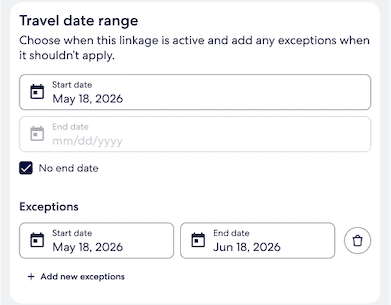
Cancellation policies
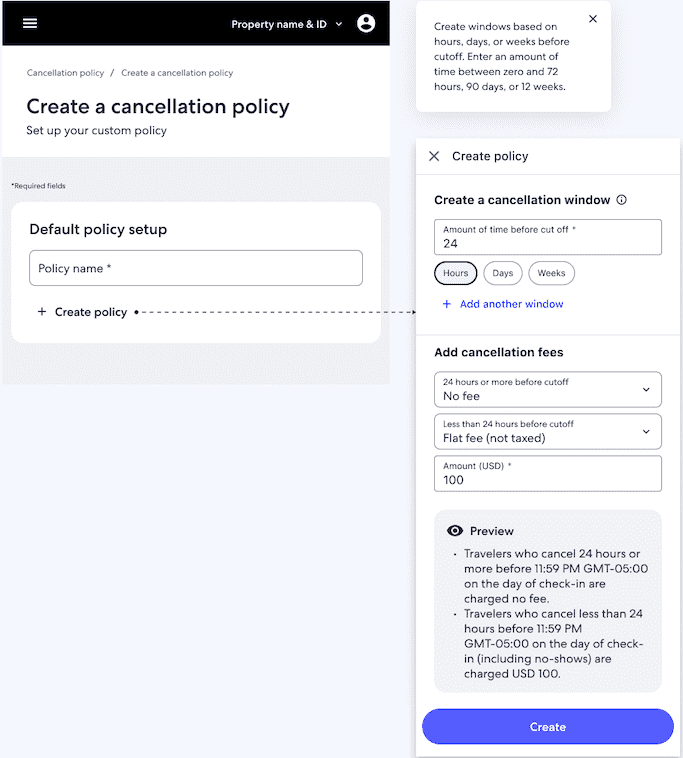
After a property is set up, properties need to set up a cancellation policy that matches their legal, commercial, or seasonal requirements. Cancellation policies define when travelers can cancel and what fees apply. These rules are managed at the property level and attached at the rate plan level.
To successfully set up a cancellation policy, the property has to complete a selection of required fields for the default policy and can optionally add date‑based exceptions (overrides) for specific stay or check‑in dates.
Part 1 - Set up the default policy
Policy name (required) - Provide an open text field.
Cancellation window (required) - Provide a numeric text field with a time-unit selector (hours, days, or weeks). This defines how far before check‑in a traveler can cancel under this policy. Additional windows can be added.
Cancellation fees (required) - Provide a drop‑down menu with optional amount fields to specify what fee is charged when a reservation is cancelled within the defined window(s), such as no fee, flat fee, or first night plus tax. We recommend that you include a “Review” section in the side panel that rewrites the configured windows and fees into plain language so that properties can quickly verify the policy before creating it.
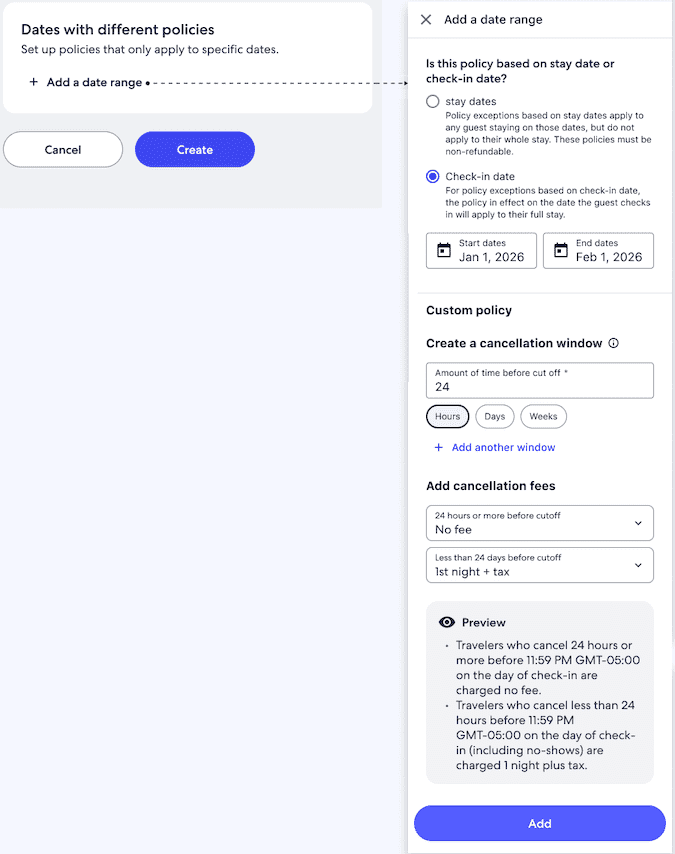
Part 2 - Provide dates with different policies
Is this policy based on stay dates or check-in date? (required) - Provide a radio button group that determines whether the exception applies to nights within the selected date range (stay dates) or to stays that begin on those dates (check‑in date). If based on a stay date, the policy can only be non-refundable.
Start date (required) - Provide a date picker to set the first day of the date range to which the exception policy applies.
End date (required) - Provide a date picker to set the last day of the date range to which the exception policy applies and must be on or after the start date.
Custom cancellation window for this date range (required when adding an exception) - Provide a numeric text field with a time-unit selector. This defines a separate cancellation window that only applies within the selected date range. Additional windows can be added.
Custom cancellation fees for this date range (required when adding an exception) - Provide a drop‑down menu with optional amount fields to specify what fee is charged for cancellations during the selected date range, which can differ from the default policy.
Fee sets
After a property is set up and rate plans exist, properties often need to configure fees that apply to stays in addition to room rates, such as extra guest charges, per‑person service fees, or room‑level fees. Fee sets group these charges at the property level so they can be reused across multiple rate plans instead of being configured repeatedly on each plan.
To successfully set up a fee set, the property must complete a selection of required fields for fee name and category, and then they can configure one or more of the following fee groups, depending on what they charge: extra guest fees, service fees per guest, and service fees per stay.
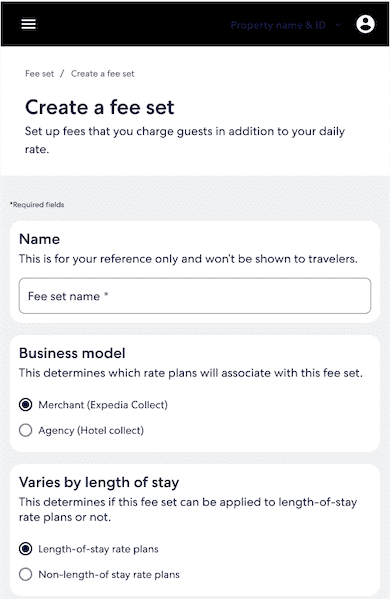
Part 1 – Define fee set basics
Name (required) - Provide an open text field.
Business model (required) - Provide a radio button group to determine which rate plans the fee set can be associated with. Choose Merchant when the property uses Expedia Collect or ETP with net rates. Choose Agency when the property uses Hotel Collect or ETP with sell rates and the rate plan’s business model is Hotel Collect. Validate that a fee set can only be attached to rate plans with the same business model.
Varies by length of stay (required) - Provide a radio button group. to determine whether this fee set applies to length‑of‑stay rate plans or non–length‑of‑stay rate plans.
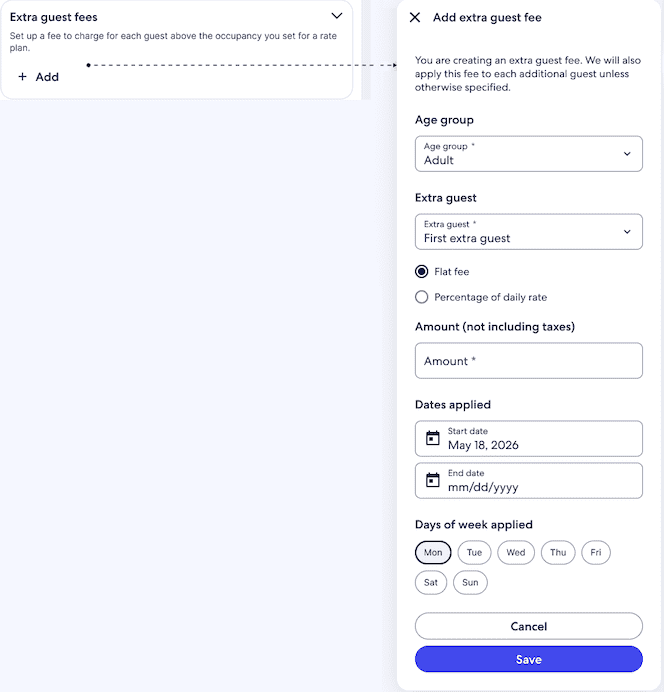
Part 2 – Add extra guest fees
Age group (required) - Provide a drop‑down menu to specify which age group the extra guest fee applies to, such as adults only, children, or a specific age band.
Extra guest (required) - Provide a numeric text field to define the minimum and maximum number of additional guests the fee applies to beyond the included occupancy.
Flat fee option / Percentage of daily rate option (required) - Provide a radio button group to determine whether the extra guest fee is applied as a flat amount or as a percentage of the daily rate.
Amount (required) - Provide a numeric text field to define the fee amount per extra guest based on the type selected.
Dates applied - Provide a date picker to restrict when this per‑guest fee is in effect by setting a start date and an end date.
Days of week - Provide a multi‑selector to define further restricts when the extra guest fee applies, such as only on weekends or only on weekdays.
Part 3 – Add fees per guest
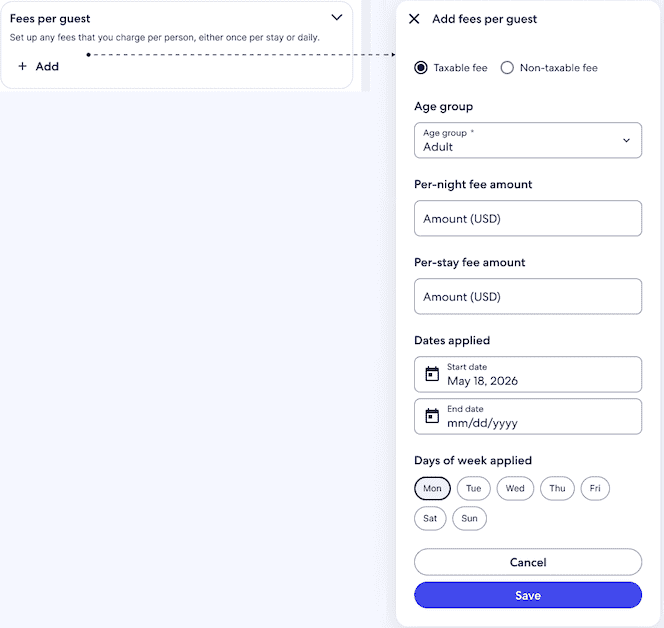
Taxable/Non‑taxable fee - Provide a radio button group to indicate whether this per‑guest fee is included in the taxable amount or excluded from tax.
Age group (required) - Provide a drop‑down menu to define which age group this per‑guest fee applies to.
Per‑night fee amount - Provide a numeric text field to define a flat per‑night fee per guest when the fee is charged for each night of the stay.
Per‑stay fee amount - Provide a numeric text field to define a flat per‑stay fee per guest when the fee is charged once for the entire stay.
Dates applied - Provide a date picker to restrict when this per‑guest fee is in effect by setting a start date and an end date.
Days of week - Provide a multi‑selector to provide further restrictions when the fee per guest applies, such as only on weekends or only on weekdays.
Part 4 – Add room fee
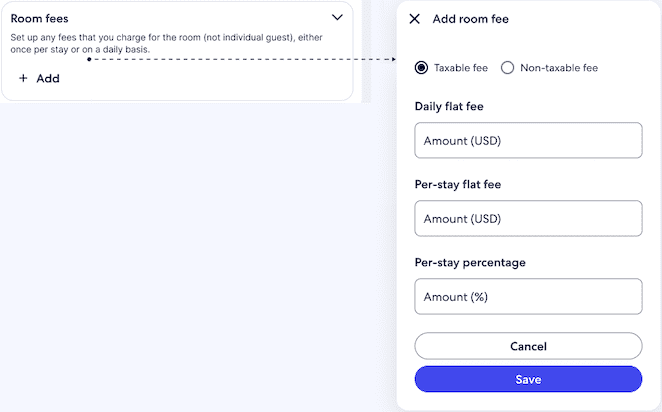
Taxable/Non‑taxable fee - Provide a radio button group to indicate whether this room fee is included in the taxable amount or excluded from tax.
Daily flat fee - Provide a numeric text field to define a flat fee per-night applied at the room level.
Per-stay flat fee - Provide a numeric text field to define a flat fee applied once per stay at the room level.
Per-stay (percentage) - Provide a numeric text field to define a room‑level fee as a percentage of the rental amount for the stay.
Availability and rates
Availability and rates are not managed by the product management capability, but they must be published to each unit in order for it to be sellable. Provide a screen to load availability and rates for a selected rate plan.
Linked rate plans - Enter availability and rates only for the parent rate plan; child plans inherit values. Use the rate plan query to detect linkage. Clearly label child plans and disable availability/rate inputs, pointing users to the parent.
Expedia Traveler Preference (ETP) - Each ETP product has a primary and a derived product. Send updates only for the primary product; the derived product shares availability and its rate is calculated by Expedia. In the UI, label derived products and disable availability/rate inputs for them. In product management, the “manageable” flag indicates which is the primary product to push availability and rates. If pulling an export of products from EPC, rates to which they should send availability and rates are referenced as "Interface Rates - Yes" / "Interface - Derived".
Guidelines for success
Creating a product management experience that is clear, predictable, and low‑stress is just as important as calling the APIs correctly. While every integration will look a little different, these guidelines apply across units, rate plans, fee sets, and policies. Consider these guidelines as well for any other capabilities and future enhancements, and use them as a checklist when designing new flows or reviewing existing ones.
Create an accessible flow with as much detail as possible
While all UI components are important, this is one of the most fundamental when it comes to building an effective UI. An effective product management UI makes it obvious where the user is, what they are editing, and what will happen next. Properties are making decisions that affect revenue, availability, tax, and guest experience, so they need the right details in the right place.
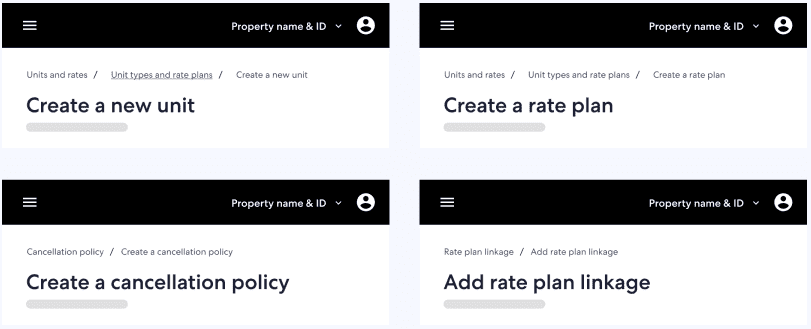
- Keep core context (such as property name and ID) visible in a persistent header so that users always know which property they’re working on.
- Use a clear page structure with descriptive titles and short subtitles for each capability or step so that users can quickly understand what each part of the page is for.
Use concise tooltips to add only the most relevant extra details, including why a field is needed, what format to use, or how it affects pricing, availability, or tax, so that users understand how to complete it without leaving the page.
Use concise preview or recap panels before confirming high‑impact changes, such as sleeping space summaries, traveler‑facing room name review, or plain‑language cancellation summaries, so that properties can quickly verify what will go live.
Provide clear and simple actions
At the heart of product management is the ability to fill in the right information when creating units, attaching rate plans, adjusting fees, and changing policies. Actions should be unambiguous, verb‑based, and feel safe to take.
Break long flows into a small number of clear main steps, each with its own primary button, and reveal smaller sub‑steps progressively so that users move forward gradually instead of facing one long form.
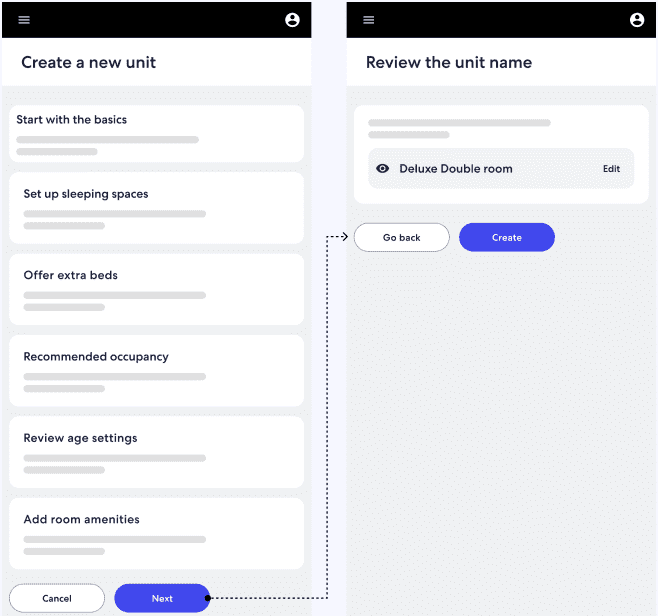
Use verb‑based, consistent buttons, and always provide a clearly labeled fallback option (such as Cancel or Close) so that users can safely step out or return to the previous step. When an action is confirmed, show a short playback or preview of what was created or changed so that users can immediately verify the result.
Design clear, helpful error messages
When something fails in product management, it can block sales or lead to incorrect prices or tax. Error messages should make it easy to see what went wrong and how to fix it.
- Place errors inline at the field level with a clear message, and use a consistent error pattern.
- Write error messages that state the issue clearly and briefly and, whenever possible, offer constructive guidance on what to do next.